Customer Support
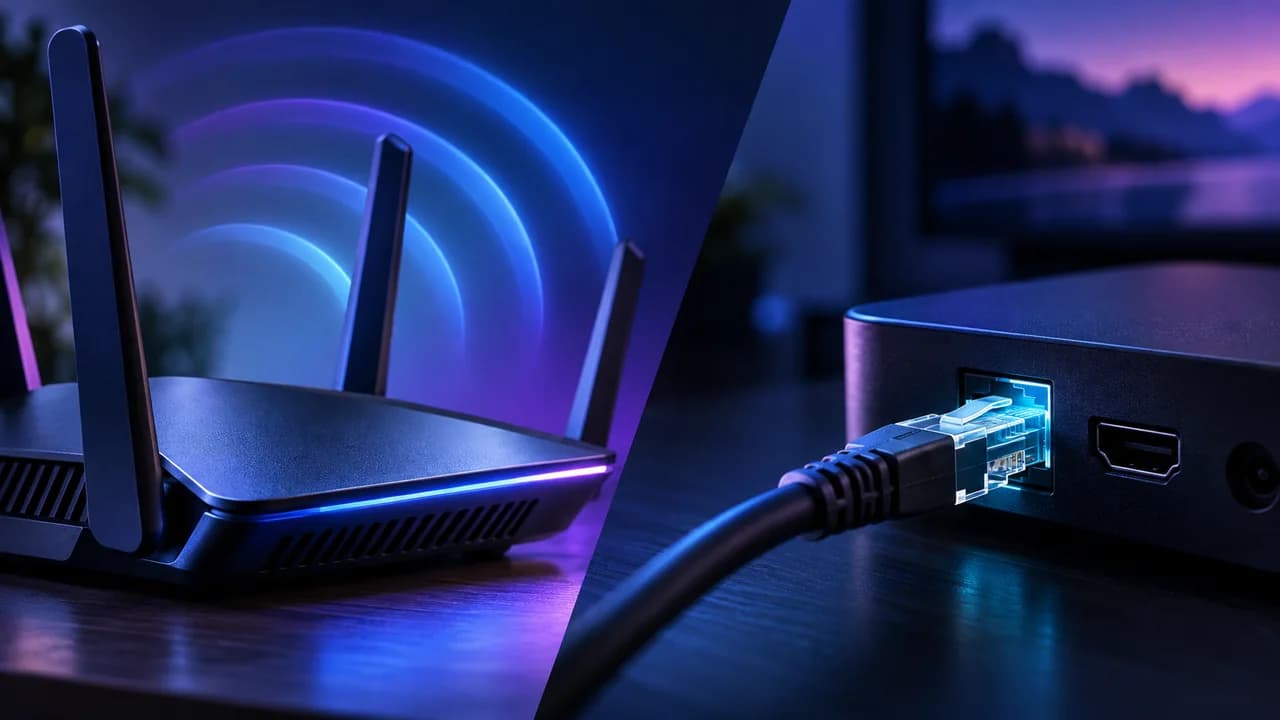
We compare wireless and wired connections for streaming — and explain when switching to Ethernet is worth the effort.
The short answer
For most living rooms, Wi-Fi works well enough for streaming, and that is the honest short answer before we get into the detail. Use wireless first, and only reach for an Ethernet cable when Wi-Fi actually lets you down. Streaming is far less demanding than people assume: a steady 10 to 25 Mbps is plenty for HD and most 4K video, and a mid-range wireless router delivers that without breaking a sweat. The real gap between Wi-Fi and Ethernet is rarely peak speed. It is consistency, and if peak speed was never your problem, consistency usually is. Our streaming speed guide walks through how much bandwidth each quality level actually needs.
Ethernet carries data over a physical cable from the router straight to your device, and that makes it predictable. No walls to punch through, no interference from the neighbouring network, no lunchtime microwave blips. Wi-Fi sends radio waves through the air, which is convenient and improves every generation, but it is a shared, contested medium even inside a single home. That difference in predictability, more than raw speed, is the entire argument in one paragraph. If you are new to the broader idea, our plain-English guide to IPTV is a friendly place to start.
So when does the choice actually matter? When you are watching live sport and a stutter means missing a goal. When you are three episodes into a box set and do not want the flow broken in the final minutes of an episode. When your TV lives in a room far away from the router. In those situations, a cable can be the difference between a smooth evening and an evening spent staring at a spinner. If you mostly want internet on every device without trailing cable across the floor, Wi-Fi is the right call.
When Wi-Fi is fine
For most households, Wi-Fi is not actually what is wrong with their streaming. It is tempting to blame the wireless network first because it is invisible and slightly mysterious, but the typical router in a typical living room sustains several simultaneous streams without working hard. Modern routers support Wi-Fi 5 and Wi-Fi 6, and on a clear channel they comfortably outrun what any single stream needs; the overview on Wikipedia explains why wireless is not automatically the weak link. If your router sits in the same room as your TV, if you are not surrounded by dense neighbouring networks, and if you mostly watch on-demand programming and films, wireless is very likely all you need.
What good Wi-Fi looks like
Good wireless starts with placement rather than hardware. A router belongs out in the open, roughly at chest height, away from fish tanks, metal shelving and the cavity behind the television. The antennas on most units radiate outward horizontally, so sitting the box on the floor behind a sofa throws away half the signal before it has left the case.
Distance is the second factor. Wi-Fi signal strength fades quickly with distance, and building materials make that fade much worse. Plasterboard is tolerable, brick and concrete take a serious bite out of the signal, and foil-backed insulation can be almost a total barrier. The practical version is simple: if your streaming device sits more than a couple of rooms from the router, or on a different floor, the signal arriving at the device may be far weaker than the bars on your phone suggest.
The 2.4 and 5 GHz trade-off
Almost every modern router broadcasts two bands. The 2.4 GHz band travels further and punches through walls better, but it is slow, and it is crowded — cordless phones, microwave ovens, baby monitors, and every other Wi-Fi network within range compete for the same limited space. The 5 GHz band is considerably faster and far less crowded, but the reach is shorter and solid walls hurt it noticeably more.
Your device chooses between the two, and routers are not always clever about it: a gadget glued to a weak 2.4 GHz signal stays there even when strong 5 GHz is available, because the router only re-evaluates at intervals. Switching your streaming box and phone onto the 5 GHz network is one of the quickest real-world fixes for flaky playback.
When Wi-Fi is genuinely fine
Wireless is the sensible default in three honest scenarios. First, when the streaming device and the router are in the same room, the connection is nearly always excellent regardless of anything else. Second, when your viewing is mostly on-demand — films, box sets, complete seasons — because the player fetches ahead, so a small blip never shows on screen. Third, when you usually stream on one device at a time and nothing heavy competes in the same moment.
The clue you have it right is lived experience: weeks where nothing buffers, where every show starts instantly, and where you never think about the network at all.
When to go wired
Ethernet becomes the better choice in a particular set of situations, and it usually involves one of three things: live streaming, a distant device, or a crowded wireless environment. The Ethernet entry on Wikipedia is a good background read, but the decision does not need to be that technical. Ask yourself two questions. Do I watch anything where a brief interruption is genuinely annoying? Is my device a long way from the router? If the answer to either is yes, wiring one device is worth the small effort.
Latency and jitter
Latency is the time a chunk of data takes to travel from the streaming server to your screen; jitter is how much that time varies between consecutive chunks. The latency article on Wikipedia covers both, and both matter more than raw speed for live viewing.
A wired connection keeps latency low and jitter close to zero, because every frame follows the exact same physical path with nothing in the way. Wi-Fi jitter, by contrast, moves up and down with the moment-to-moment condition of the air around the router. For a live sport stream you are watching as it happens, there is no buffer to hide the effect: a late chunk means a stutter, a missed chunk means a freeze while the player waits. That is the single biggest reason sports fans go wired.
Gamers feel it even more sharply, since online play reacts to every millisecond; if you stream and game together, one wired cable for the console or PC is the clearest upgrade, and it keeps your gaming sessions from fighting the rest of the house for the airwaves.
Interference and shared airwaves
The phrase that explains most Wi-Fi problems is co-existence. Every network in your building shares the same public spectrum, and although everyone transmits politely, only one can use a given channel at a given moment. When the evening rush hits and every flat in your block is streaming, your neighbours are effectively taking turns with your packets. Channels get congested, retransmissions climb, and jitter rises. None of that is your fault, and none of it is fixable from inside your router settings.
Ethernet is immune to all of it. A cable is a private circuit from your wall to your device. It does not care what your neighbours watch, whether a truck is parked outside, or what channel the flats next door have picked. In a dense apartment building, removing that external noise is often the difference between a reliable stream and one that degrades exactly when everyone wants to use it.
Range, or the lack of it
Wireless reach is a marketing number, not a promise, and the effective range of a useful Wi-Fi signal is usually far shorter than the box claims. Ethernet has no such vanity: a copper cable carries a clean connection reliably up to one hundred metres, which is far beyond any normal home. Houses are not the limit for a wired connection; only your willingness to route the cable is.
The sticking point is real, though. From a router in the hall to a TV in the back bedroom you might face skirting boards, doorframes, and a stretch of wall to drill or sneak a cable behind. That effort, and the visible cable if you leave it on the floor, is the honest cost of going wired. For most homes a long run is unnecessary; wiring the single device that struggles most is usually enough.
The effort of running a cable
Let us be realistic about deployment effort, because it is rarely as bad as people fear. When the router sits next to the TV, wiring takes ten minutes: buy a cable of the right length, plug one end into the router, the other into the device, done. When the device is across the room or upstairs, options multiply in order of difficulty. A flat cable tucked along the skirting board is cheap and mostly invisible, and a glance at our device guides shows which of your boxes can take one. A powerline adapter that rides your home's electrical wiring avoids drilling and is a fair middle ground, though not as rock-solid as a real cable. And a Wi-Fi mesh fixes coverage without any cabling, by bringing the signal closer to where the devices live.
How to connect your device
Connecting a single device by cable is genuinely simple, and the equipment is inexpensive. You want a network cable rated Cat5e or Cat6 — the first meets every streaming need comfortably, the second adds headroom for fast local transfers — and you want it long enough to reach without tension. Plug one end into a spare LAN port on the back of your router, usually numbered and often colour-coded, and the other into the Ethernet port on your streaming device. That is the entire procedure; there is no app to install and nothing to configure.
Which devices have the port
A surprising number of devices already have an Ethernet port built in; people simply never needed it before. Most smart TVs from the last several years include one, tucked at the back next to the HDMI inputs. Android TV boxes and Apple TV units have one as standard. High-end Fire TV hardware includes the port too. If the device has the socket, you are already ten minutes away from a wired stream, which is why our TV setup guide, Android TV guide, and Apple TV guide all mention it before any wireless advice.
The exceptions are the smallest streamers. Compact HDMI sticks — the Fire TV Stick and Fire TV Stick Lite — have no Ethernet socket, simply because there is no room. For those, a compatible USB-to-Ethernet adapter plugs into the power connection and adds a network port, usually alongside USB power. It costs a little more than a plain cable, and it turns a purely wireless stick into something with a real wired connection.
Checking it actually worked
After plugging in, verify the link rather than assuming. Look at the network screen in the device settings: a wired connection usually shows as Ethernet, Cable, or a link speed such as 100 or 1000 Mbps, rather than a Wi-Fi name and bars. Run the same checks you use for wireless — open a stream, jump to a live channel, fast-forward an on-demand programme — and compare the behaviour directly. If the evening that used to stutter is now steady, you have your answer.
Do not judge the wired connection during an isolated five-minute test at midday. The whole point of Ethernet is how it behaves at peak times — the 8 p.m. hour when everyone is watching, when the airwaves turn busy. Give the cable a full evening and compare the experience honestly.
Steady connections for binge-watching
Binge-watching is where a connection either puts in a full shift or makes itself miserable one episode in. On-demand playback buffers a few seconds ahead, so the occasional small blip rarely ruins a single film. But a marathon is different: hours of continuous playback, the player auto-advancing into the next episode the moment the credits roll, and every hiccup across that whole session being another chance for the stream to fall behind, drop a quality tier, or stall precisely as the plot twist lands.
Think about the shows worth the marathon. Breaking Bad earns its box set with long arcs of crime drama that reward uninterrupted attention; the Breaking Bad story only gets better when nothing jerks you back to reality. Stranger Things is a sci-fi thriller engineered for cliffhangers. The Last of Us carries its drama in quiet, devastating scenes where a freeze frame does real damage. Game of Thrones built an entire fantasy world, and famously, episodes people wait all week for can be picked off by a single drop-out at the wrong moment. Its page on Wikipedia will remind you how invested viewers get. The point is simple: when the story has you, the last thing you want to think about is your connection.
Full seasons, ready to binge — complete seasons and box sets across sci-fi, crime, mystery and drama, with new episodes added as they air. That is the catalogue promise our streaming library is built around, and a stable connection is what stops a spinning wheel from breaking it. Wired reduces the chance of a mid-episode hiccup to nearly nothing, because jitter and interference are the two causes your cable simply does not have. On wireless, most of those marathon sessions will still complete fine; the wire is about removing the unlucky drops, the one-in-thirty interruptions that break the spell.
Live versus on demand
It is worth separating the two kinds of viewing, because they stress a connection differently. On-demand binges — complete seasons and box sets watched on your own schedule — let the player get ahead, so they forgive small network wobbles. Live sport is the opposite: there is nothing to get ahead of, you are following the event in real time, and the connection must keep pace or you miss the play; the same Wi-Fi that sails through a binge may wobble on a live match because live traffic cannot be prefetched.
That distinction solves the ethernet question for most people. If your heavy usage is on-demand, Wi-Fi is usually fine and you should only wire up if you see actual faults. If live sport is part of your routine, particularly at peak viewing hours alongside every neighbour on the street, the case for a single cable to the living room strengthens considerably. Many homes settle on the practical compromise: wireless for most devices, one wired connection for the TV that matters.
Making the marathon the test
Use the binge itself as the test. When a box set is your evening plan, charge the device, sit back, and watch the full session on a wireless connection while keeping the network honest in your mind. Note the moment anything stutters and whether it recurs. Then — because modern smart TVs and streaming boxes make the swap trivial — connect the cable and repeat the experiment on the same show, at the same hour, ideally across several evenings of a tv series you actually want to finish.
The difference people usually report is not speed. It is that the wired evening passes with no incidents at all, while the wireless evening contains one or two moments they had previously forgotten. That is jitter and interference doing their quiet work. If the wired week shows a clear improvement, keep it; if it makes no difference you will notice that too, and you can unplug without regret.
Still buffering? Check the whole chain
Suppose you have done the right things — router placed well, device on the faster band, and now a cable into the television — and the stream still stutters. Then the connection was never the whole story, and blaming Wi-Fi or Ethernet further will waste your evening. The network is only one link in a chain: your router, your internet provider, the physical line into the house, the streaming server, the app on your device, and the channel you are watching. Any one of them can buffer, and the fix is to walk the chain in order rather than guessing.
Start with the numbers
Measure your connection at the times that matter, not on a quiet afternoon. Run a Speedtest on the streaming device itself while a stream is misbehaving, and compare it with the same test at four in the afternoon. If your speed collapses in the evening, the bottleneck is upstream of you, between the modem and the internet — no amount of Ethernet will fix it, so check your internet plan before buying another cable.
If the speed is fine but buffering persists, the remaining suspects are the rest of the chain. Reboot the router and the streaming device properly — off, thirty seconds, on again — which clears countless small faults. Check whether every channel misbehaves or only some; a single struggling channel usually points at that server, not your home, and our buffering fix guide walks through the diagnosis. If only one or two channels are the problem, the issue is upstream provider-side, not your network.
The player is part of the chain
Streaming television relies on an app to negotiate the stream, and apps are not created equal. The same channel on different players can behave very differently, because some apps handle surges and reconnects gracefully while others trip over them. If buffering is patchy, try the same IPTV Smarters channel in a second player — the free TiviMate and VLC are the usual candidates online, and a comparison takes minutes. A player that reconnects cleanly can make a mediocre connection feel fine, which is worth knowing before you change any hardware.
Know what you can and cannot fix
The honest boundary of this conversation is that the chain has parts you control and parts you do not. Your Wi-Fi, your cabling, your router, and your player are all in your hands, which is why this guide focuses there. The streaming servers, the live delivery network, and the feed for a particular channel are not, no matter how good your connection is. Live events, in particular, can strain the provider's network at the exact moment everyone wants to watch; that surge is not part of your setup and no cable will remove it. When all your equipment is solid and the fault is clearly elsewhere, our support team genuinely wants to hear about it, and the FAQ covers the questions we get most.
The decision, in short
Step back and the conclusion is comfortable. Start on Wi-Fi, because it is free, instant, and genuinely good enough for the majority. Fix the easy things first: router placement, the 5 GHz band, a glance at the wiring. If live sport or a distant television is involved, spend ten minutes on one Ethernet cable and judge the result over a full evening. Only if buffering survives all of that should you suspect the rest of the chain — which has its own practical fixes in our streaming quality guide. You do not need perfect equipment to watch reliably; you need the right one fix for the one weak spot your setup actually has.
Tags
- Wi-Fi
- Ethernet
- Internet
- Performance
- Streaming
- Binge-watching
- Sports
- TV Series