Start with the symptom or task in front of you. For a new device, identify its operating system before choosing an app: Fire TV, Android TV, Google TV, Apple TV, Samsung Tizen and LG webOS do not all install the same software. Use the matching setup article, confirm the exact player name and publisher, and keep your server address, username and password private. A player is the viewing interface; your subscription supplies the account and content. Keeping those roles separate makes login problems much easier to explain and solve.
When playback pauses, resist changing every setting at once. Compare a second channel or episode, then a known video in another app on the same device. If several services fail, check the local network. If one title fails at the same point, record the season, episode and timestamp for support. The buffering checklist turns those observations into a short sequence, while the speed guide explains how household activity changes the result.
Treat picture quality as its own problem. A soft image, loading spinner, black HDMI signal, uneven motion and delayed audio have different causes. Use a familiar scene, preserve the original settings, and change one condition at a time. A higher output label cannot add detail that the source never contained, and a faster package cannot add a subtitle track or repair an unsupported video format. The streaming quality guide separates network, decoding, display and audio tests so you can keep only the change that creates a repeatable improvement.
TV series deserve a slightly longer acceptance test. Confirm the show and release year, open the intended season, play a complete episode, inspect audio and subtitle choices, and test resume playback. Artwork helps with browsing but does not confirm that every season or newly aired episode is available. If one entry is missing or damaged, send the exact title details through the contact page without including a password, activation code or full playlist URL in the message or screenshot.
Use external documentation for platform controls and internal guides for the complete viewing workflow. Manufacturer support is the authority for device updates, app stores and reset steps; this library connects those controls to player login, catalog organisation and real-world playback tests. That combination is especially useful on smart televisions, where a brand may sell different operating systems across model years. Check the model rather than assuming that instructions for another screen with the same logo will match yours.
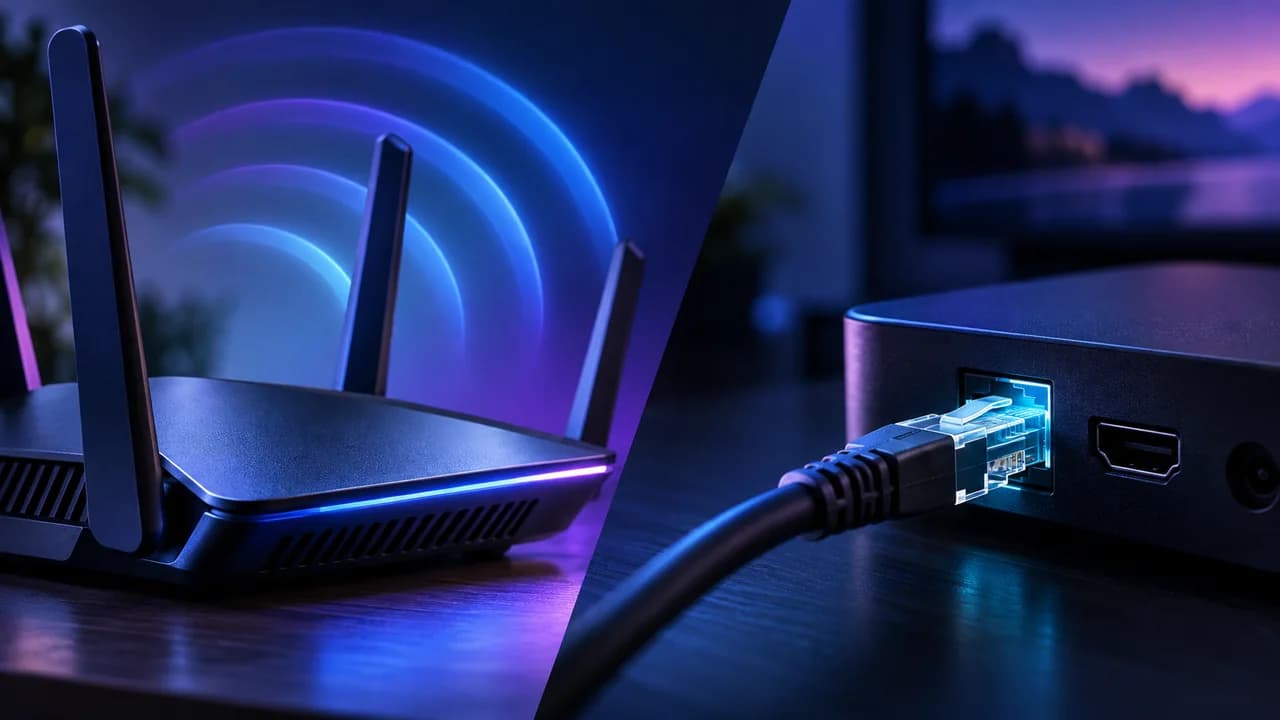
Finish by documenting the setup that works. Keep a private note with the device model, player name, app version, connection type and any necessary non-default setting. Leave secret account values out of shared notes. After a major update, replay one live channel and one series episode, test captions, then restart the player. Once those checks pass, stop adjusting technical options. A stable configuration that everyone in the household can use is the best result, regardless of whether the connection is wired or wireless or the screen advertises the highest possible format.