Customer Support
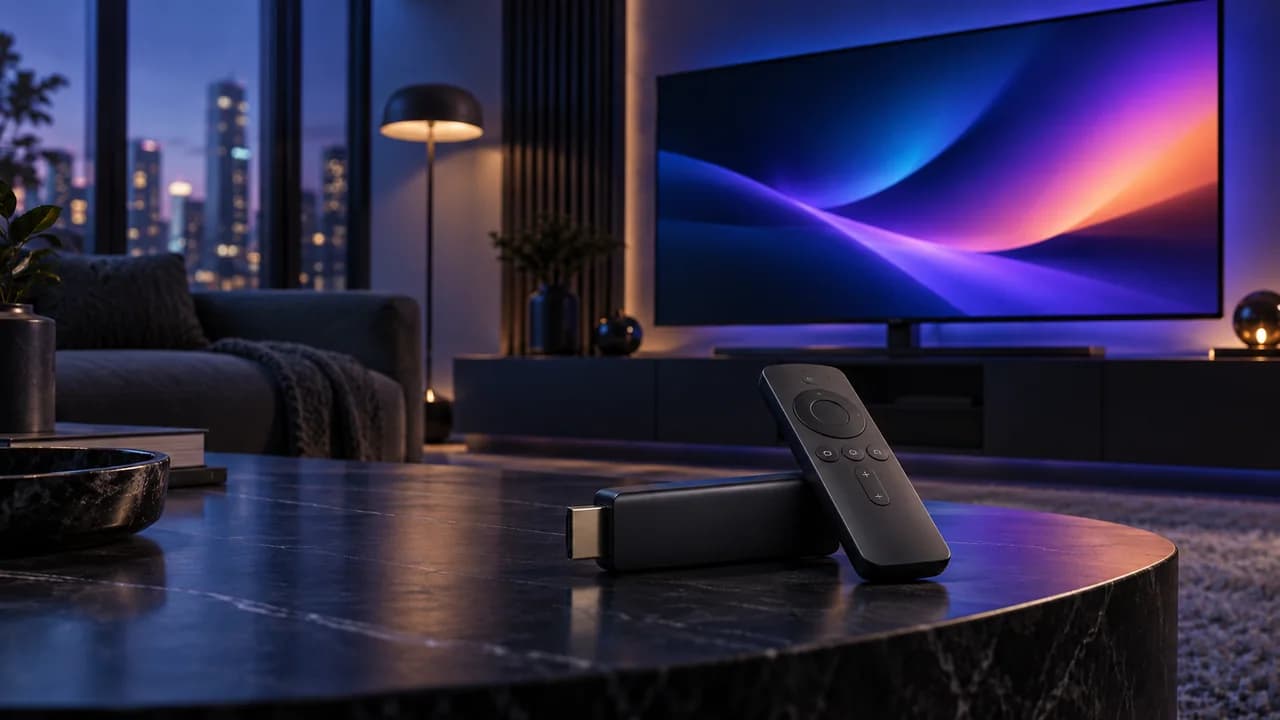
A complete walkthrough for getting a streaming player installed and configured on Amazon Fire TV Stick and Fire TV Cube.
What you'll need
Setting up a streaming player on Amazon Fire TV is one of the quickest paths to a full television experience, and it usually takes less time than you expect. The Fire TV range covers the Stick, the 4K model, and the Cube, and the setup logic is the same across all of them. This guide walks through every step in order: what to gather first, how to install the player, how to sign in with your account, how to find live channels and on-demand shows, and how to keep playback smooth over an evening of binge-watching.
Gather three things before you start. First, your Fire TV device itself, plugged into a TV or monitor with a working HDMI input and signed in to your Amazon account. Second, the login details for your IPTV USA subscription, which you received by email after checkout — you'll need the username, password, and unless you have an M3U-style account, a server URL or playlist URL. Third, a stable internet connection. A wired Ethernet connection is ideal, but current-generation Wi-Fi works perfectly well for most people.
You do not need a computer, a USB stick, or special technical skills. Everything we're about to do happens on the TV itself using the remote that came in the box, plus a little reading on your phone when a player asks for a code. If you're curious about what IPTV is at all, the Wikipedia IPTV overview and our what is IPTV explainer both cover the fundamentals, and the IPTV service page details exactly what your subscription includes.
One thing to decide up front is how you'll connect to your network. Speed matters more than most people think: live television is real-time data, so a connection that dips below reliable speeds turns into pixelation and buffering. Our recommended internet speed guide lays out the numbers in plain terms, and the IPTV internet speed page explains why 25 Mbps is a comfortable floor for most households. If you have a choice, plug the Fire TV into your router with an Ethernet cable — the wired vs wireless guide explains the tradeoff in detail. A free test at Speedtest takes thirty seconds and tells you exactly what you're working with before you make assumptions about your quality.
Install the player
Because Fire TV does not come with an IPTV player preinstalled, the first real task is choosing and installing one. The good news is that the best options are free, well-maintained, and available through the official Amazon Appstore, which means no strange download sites and no sideloading required in the normal case.
Which player should you use
The most popular starting point is IPTV Smarters Pro, which is designed specifically for this kind of service and supports both Xtream Codes login and M3U playlists. It keeps live channels, movies, and series in separate tabs, which makes browsing TV series and full seasons far easier. TiviMate is the other heavy hitter — a polished guide layout, catch-up support, and a layout built for remotes rather than touch screens, and its official site is a good place to see screenshots before you commit. You can read more about both in our IPTV Smarters Pro guide and our TiviMate guide. If you simply want to open an M3U playlist and watch without a heavy interface, VLC is a dependable minimum-effort option, and its IPTV setup still works the same way it always has.
Install from the Appstore
From the Fire TV home screen, select the magnifying-glass search icon, type the name of the player you chose, and press Select. The first result should be the official app in the Amazon Appstore — the one to check for is the name you recognize rather than a lookalike. Press the Get or Download button, wait for the progress bar, and the player lands in Your Apps & Channels. Opening it from there starts the setup the player is about to send you through.
If the supported player is not in the Appstore
Do not install a random APK simply because its name resembles the player you need. First confirm the exact app, publisher and supported login method with your service, then check Amazon's current Fire TV help. App availability can vary by device generation and region.
If the publisher officially distributes a Fire TV build outside the Appstore, follow that publisher's documented process and verify the download source before changing installation settings. Return any temporary installation permission to its previous state afterward. Avoid shortened links, copied APK files and tutorials that ask for unrelated permissions or payment details. A supported Appstore alternative is the safer and simpler choice for most households.
Enter your account details
Opening the player for the first time shows a welcome screen. Depending on which app you chose, you'll either tap Login or Playlist on the home screen. This is where everything comes together, so it's worth taking slowly.
The three login fields
Most players present the same three fields in some order: a server URL or playlist URL, a username, and a password. These come from your welcome email. The format of the URL depends on the account type. If you set up with Xtream Codes — the standard for most modern IPTV providers — the player gives you labeled boxes for each value, and our Xtream Codes guide walks through every field. If you received a playlist URL that ends in `.m3u`, you have an M3U account, and the M3U playlist guide covers that flow.
Type the details as they appear in the email. A trailing space or a missing character in the server URL is the single most common cause of a failed login, and it looks identical to a genuine account error. If the first attempt fails, retype rather than editing, delete the auto-added prefix if your player refuses the URL for including `https://`, and make sure the username is not accidentally including an email domain.
If the player asks for a portal name
Some players refer to the server URL as a portal or ask for an extra device name. Leave the device name blank or type something simple from memory, and paste only the server URL into the URL field. If your subscription is tied to a provider portal, the URL format is usually `http://host:port` and the player appends nothing you have to worry about. Contact support before changing anything there on a hunch — our FAQs cover the most common pitfalls.
Set up your TV guide
Once you're logged in, most players populate a program guide automatically when the account includes EPG data. If your guide shows channels but no program names, open the player's settings, find the EPG or guide URL field, and paste the EPG link from your welcome email if one was provided. Our IPTV EPG guide explains the timing: guide data refreshes on its own schedule, so an empty grid right after login is normal and usually fills within a few minutes.
Browse and start watching
With the login complete, the player loads your live channels and your on-demand library. This is the part where people usually exhale, because everything they paid for is now sitting on the screen.
Live channels and the guide
Your live channel list is organized into groups — categories such as news, sports, kids, and so on — and you navigate groups with the left and right buttons and individual channels with up and down. Pressing Select on a channel plays it immediately. If you want to flick through channels like cable television, most players let you press up or down on a playing channel to hop to the next; the transition takes a second or two rather than a minute. The categories you'll see depend on your plan, and our channels overview shows the breadth of what a full US lineup usually includes.
Open the guide to see the schedule instead of a list. The guide shows what is on now and next for each channel, and many players let you set reminders or add favorites. A few minutes of arranging favorites early pays off for weeks, because it turns a thousand-channel list into the dozen channels you actually want.
Movies and series on demand
Most plans include more than live preview — on-demand movies and series sit in their own tabs, separate from the channel list. This is the same on-demand library we talk about in the features overview and it behaves exactly like a modern streaming service: browse by poster, search by title, open a show, and pick the season you want. If your taste runs to films, the IPTV for movie lovers guide is worth a read. Sports fans will find gameday scheduling covered in the IPTV for sports walkthrough, and families with younger viewers can check the IPTV for kids notes on what shows up where.
Search is your friend
Every player worth installing has a search icon. Search covers live channels, movies, and series at once, which is far faster than scrolling through groups during a browse. A search for a specific TV series also shows you upfront whether it is available on-demand as a complete season or whether you'll be watching from a live channel schedule — the answer changes what you expect from the evening.
Full seasons available to binge
The on-demand series section is where a Fire TV setup becomes genuinely exciting, because this is where binge-watching actually works. Full seasons, ready to binge — complete seasons and box sets across sci-fi, crime, mystery and drama, with new episodes added as they air.
That one sentence describes the whole experience: open a TV series, pick any season, and watch every episode in order without hunting for the next one. There are no mid-season gaps and no waiting on a channel to repeat an episode you missed. The series section is a true on-demand library rather than a mirror of the live schedule.
Series worth starting this weekend
To give you a sense of what the catalog looks like, a handful of shows turn up in subscriber conversations more than any others. Breaking Bad is the masterclass in slow-burn crime drama — start at season one and the complete box set carries you through to the finale without a single gap. Stranger Things is the sci-fi thriller that practically defines seasonal binge-watching, with each season arriving as a complete set. The Last of Us is a dense, emotional drama that rewards a full evening more than an episode at a time. And Game of Thrones is the fantasy epic that turned marathon watching into a cultural event — perfect for the person who was late to it the first time around. Four very different genres, one shared quality: complete seasons, ready when you are.
How new episodes get added
Series are updated as they air rather than released in one bulk at the end of a season. If a new episode lands on TV on a given night, the fresh titles generally appear in the library's latest-additions area so subscribers can keep pace with their shows week to week. For box sets and older classics, everything is already sitting there, ready to be watched in one sitting or stretched out over a month. That freedom — a full season or a single episode, at any hour — is the entire point of going on-demand.
Binge in comfort
A practical note before you settle in: binge-watching a full season is one of the few activities where the difference between a smooth stream and a frustrating one shows up fast. An hour in, a buffer-heavy stream makes the whole night feel wasted. That's exactly why the next section matters — the small settings that keep hours of consecutive episodes from turning into an argument with your internet.
Getting the smoothest playback
No streaming service can honestly guarantee zero buffering, and anyone who tells you otherwise is overselling. What you can do is tip the odds heavily in your favor with a handful of practical steps. With these in place, most evenings run cleanly from first episode to last.
Give your setup good internet
The fastest fix in the entire guide costs nothing: know your connection and place your device near its best point. If the Fire TV is far from the router, Wi-Fi struggles silently — the connection drops quality rather than dropping offline. Our IPTV internet speed page recommends a baseline for live viewing and a higher threshold for 4K and busy households, and the wired vs wireless comparison explains why Ethernet almost always wins on stability. Run a Speedtest from the same room as the Fire TV, not from where your phone happens to be.
If you can run a cable to the router, do it. It removes the single most unpredictable variable in the whole setup and makes everything below a nice-to-have rather than a necessity. If cable is impractical, at minimum move the Stick closer to the router and keep the cable to your TV as short as the layout allows.
Player settings worth checking
Every player exposes a small set of settings, and three of them matter more than the rest. Buffering or cache size can usually be raised — more cache evens out speed dips, at the cost of slightly longer initial load. Hardware decoding should be on when the player offers it, since Fire TV handles that in dedicated hardware rather than slowly in software. And if your player shows a quality picker, steady is better than maximum: a locked reasonable quality beats a stream that keeps negotiating peaks and troughs.
The how to improve streaming quality guide walks through these settings screen by screen, and our buffering guide is the specific playbook for when playback still stutters. Read them once, apply the two that fit your setup, and you're done — this is a solved problem, not an ongoing maintenance task.
Keep it honest about expectations
Even with perfect setup, live television is carried over the internet in real time, and real internet has occasional wobbles. When a one-off stall happens, change the channel and come back, or wait ten seconds rather than assuming the setup broke. If a single channel stutters while others are fine, it is almost always that source rather than your whole connection. Generous expectations, applied to a correctly configured setup, cover most nights.
Troubleshooting
If something does go wrong, the fix is almost always simpler than it feels at the moment. Here are the problems that come up most often, in the order of how likely they are to be the cause.
Login fails or times out
A failing login is rarely an account problem. Retry with these exact steps: close the player completely and reopen it, retype the server URL from the email instead of editing it, and try again. If the player added `https://` or a trailing slash when you didn't want one, match the email's format precisely. Still stuck? The IPTV not working guide runs through the diagnosis methodically, and if the player reports a server that simply won't connect, run a web check from any browser to confirm whether that address is reachable right now — a momentary outage looks exactly like a broken account.
Channels play but the guide is empty
Guide data loads separately from channels and on its own clock. Give it five to ten minutes, pull down or refresh in the guide screen, and re-paste the EPG URL if it still looks bare. The IPTV EPG page covers the timing so you don't restart the player repeatedly while waiting for what is already scheduled to arrive.
Buffering everywhere
Buffering on every channel at once points at your connection rather than the service. Restart the router, run Speedtest from the Fire TV's room, and if speeds are low, fall back on the steps in the buffering fix guide and the deeper troubleshooting article. If speeds are fine and buffering persists, restart the Fire TV itself — an afternoon of streaming genuinely makes these small boxes sluggish, and a power cycle clears it for most people.
A specific channel misbehaves
One problem channel among hundreds healthy ones is a source issue, not a subscription issue. Switch to a second player or the same channel's alternate feed if your plan includes one, and note the time of day — a channel can be overloaded at peak times and perfectly fine twenty minutes later. When the trouble follows only one feed and nothing else, it is not worth changing anything about your setup.
The remote won't move through the app
Some on-demand players have sections designed for touch that are fiddly with a remote. If a menu seems unresponsive, press the home button, reopen the player, and use the navigation pad rather than the side buttons when the UI offers both. Using the app's own back button rather than the physical one keeps the player from losing its place.
Next steps
By now you have a working player, a signed-in account, live channels, and an on-demand library full of complete seasons. The last few steps are about turning that setup into something you actually live with comfortably.
Add the extras that matter
If you haven't already, explore the non-channel side of what you subscribe to. The TV guide's catch-up feature (where your plan includes it) means you can go backwards in time, not just live. Refresh the guide every so often so program names stay accurate, and pin your favorite groups so the player opens to them instead of the top of a long list. Small conveniences take ten minutes tonight and save you two seconds a hundred times a week.
If you picked the wrong player
Maybe you tried a player and didn't love it. That is normal and it costs nothing to change: your subscription is not tied to any app. Install a second player, log in with the same details, and compare the guide layouts for an evening. Many people settle on TiviMate for the guide and keep the first player as a search tool, or vice versa. You can compare supported players with the same account details, but simultaneous playback still follows your plan's connection allowance. Close the first session before testing another player when your plan permits one active stream.
Watch something you already love
Now that the setup is running, put it to work with the most honest test there is: a full season of something you already enjoy. IPTV USA plans are built around this kind of viewing — live channels for today, a complete library for tonight, and new episodes dropping as they air. If you want the full menu of what's included, the plans and pricing pages lay out every level, and the live players can test you on the free trial before you commit to a longer term.
Other devices, whenever you like
Your account is not limited to this Fire TV. The same login works on Android TV boxes, Apple TV, and smart TVs throughout the house, and the setup, while not identical, follows the same rhythm. If you add more screens later, the Android TV setup and smart TV setup guides, plus the Apple TV tips, will have you sorted the same afternoon. Our Fire TV installation walkthrough captures the steps above in one place if you ever reinstall it, and if anything in this guide doesn't match what you see on your screen, the contact page is always the fastest way to reach the support team that updates these instructions.
Tags
- Fire TV
- Amazon
- Setup
- Streaming
- IPTV
- Binge-watching
- TV Series
- On-demand
- Box sets